
Monday, March 10, 2014

Monday, February 3, 2014
Poster Mock-ups


Just for fun – but we could have some sort of a promo poster, especially as part of the fundraising.
Saturday, January 18, 2014

Friday, January 17, 2014


Tuesday, January 14, 2014


Friday, January 10, 2014
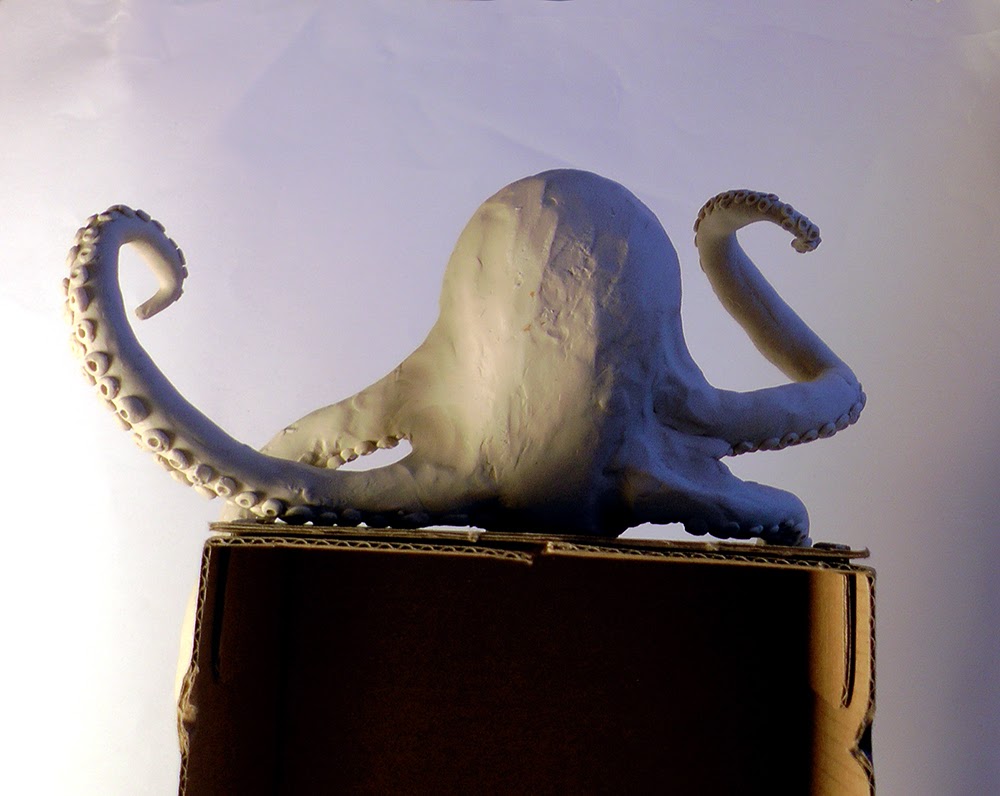
Masked One Model Sheet

Went with the body type in the maquette – just gotta check he'll fit between the benches.
Saturday, November 16, 2013
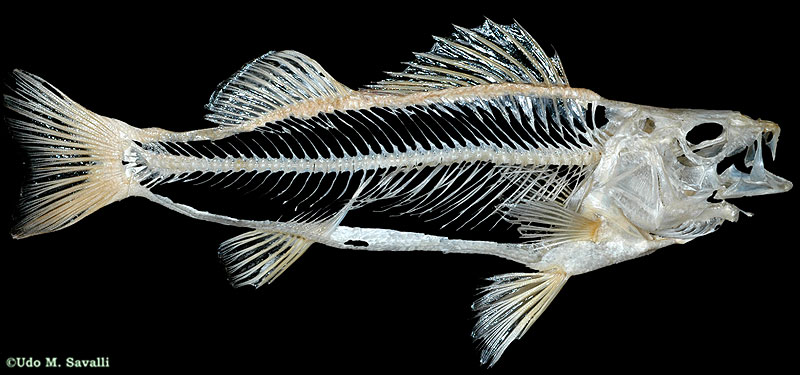
More Ghost Fish

Some Ghost Fish development. I wanted to do more variations before posting but haven't had the time. Comments? The biggest choice is probably that between the delicate fish (like the bottom one) and a proper big fish (second-to-last). I personally feel the delicate one is much prettier and more easily skeletal – but the ghost fish we have will be probably two feet long, so is that's just gonna look silly...?




Sunday, November 10, 2013
Monday, November 4, 2013
Masked One new concept sketches

Stuff to consider:
- Thick or thin tentacles
- Body shape; keeping in mind how the mask moves. Should only the mask slide around his anatomy or should the bump-neck-thing slide around with it? Like there's something underneath his skin that's making the bump and moving
- I prefer him with legs, makes him look less like a stranded squid. Other views?
- Wooden mask - painted or not? How decorated?
Friday, November 1, 2013
Ms Goo
So, with Ms Goo we're aiming for a slimy character who will leave little pieces/puddles of herself as she slides across the floor. She'll be able to maintain her form with will power, but as she relaxes she begins to spill out a little, sinking towards the floor, like if you dropped a dollop of honey on the counter. But she can pull herself together to her former vague shape by pulling herself up inwardly.
Here's some initial concept sketches for Ms Goo:

This video, sort of conveys the consistency that we are trying to achieve with the character. It's a 'How To' video for slime, so you can skip the 'making of' section to about 4:29 which will show the children playing with the slime.
We've tried taking some reference videos, and though we don't want exactly this, we decided that there was some nice detail in how the material stuck to the kitchen surface as it was pulled along. Some of these little segments would then come to life and follow Ms Goo.
Saturday, October 26, 2013

Friday, October 25, 2013

Thursday, October 17, 2013


Monday, October 14, 2013
Sunday, October 13, 2013
Asset Manager
Asset Manager manual

So here it is finally , asset manager V1.0, Project name - Aurora.
So the buttons :
Listing - list the folders in the server
ChangeCWD - changes the working directory of maya in your computer
Close Connection - closes the Asset manager and closes the connection with the server
Get CWD - return the current working directory of maya. It prints the directory in your script editor.
Upload - upload a specific file to the server
Jump to folder - you can jump to folders on the server , just select a folder form the drop down menu
How to install the script :
Windows :
Place the Class_asset.py file in the scrips maya folder. Example : C:\Users\A660-1DW\Documents\maya\2012-x64\scripts . After that in maya open the Aurora.py script in the script editor and run the script.
Linux/Macs :
I will double check tomorrow , but I think it is the same as Windows .
How to download files :
So to download files you simply select the folder in the server using the jump to folder drop down menu. And then in the square box select the item you want to download. THE FILE WILL BE DOWNLOADED TO THE CURRENT WORKING DIRECTORY. To check what is your current working directory press 'Get CWD' button. The result will be printed in the script editor. To change current working directory press 'Change CWD' button, you simple go to the folder you want use and press 'Save'.
How to upload files :
Now this is not very user friendly but I will be improving this , this is 1# on my list. So to upload file, first you change your current working directory using the 'Chagne CWD' button to where is your file. After that you select folder in which you want to upload the file. Then you press the 'Upload' button and type in the files name , including and endings. Example 'Test.mb' will be have to by typed fully including the .mb .
Additional Notes :
When browsing the folders in the server , you no longer have to press 'Listing' button. It is done automatically. When you run the script nothing is listed in the box, after you select the folder with the 'jump to folder ' drop down menu , then the items appear.
When uploading/downloading you can see a very primitive progress bar in the script editor, a better progress bar coming up in V1.1
Additional Notes :
When browsing the folders in the server , you no longer have to press 'Listing' button. It is done automatically. When you run the script nothing is listed in the box, after you select the folder with the 'jump to folder ' drop down menu , then the items appear.
When uploading/downloading you can see a very primitive progress bar in the script editor, a better progress bar coming up in V1.1
If you have any problems please contact me. the TD guy.
Saturday, October 12, 2013
Sad Giant Posed Maquette


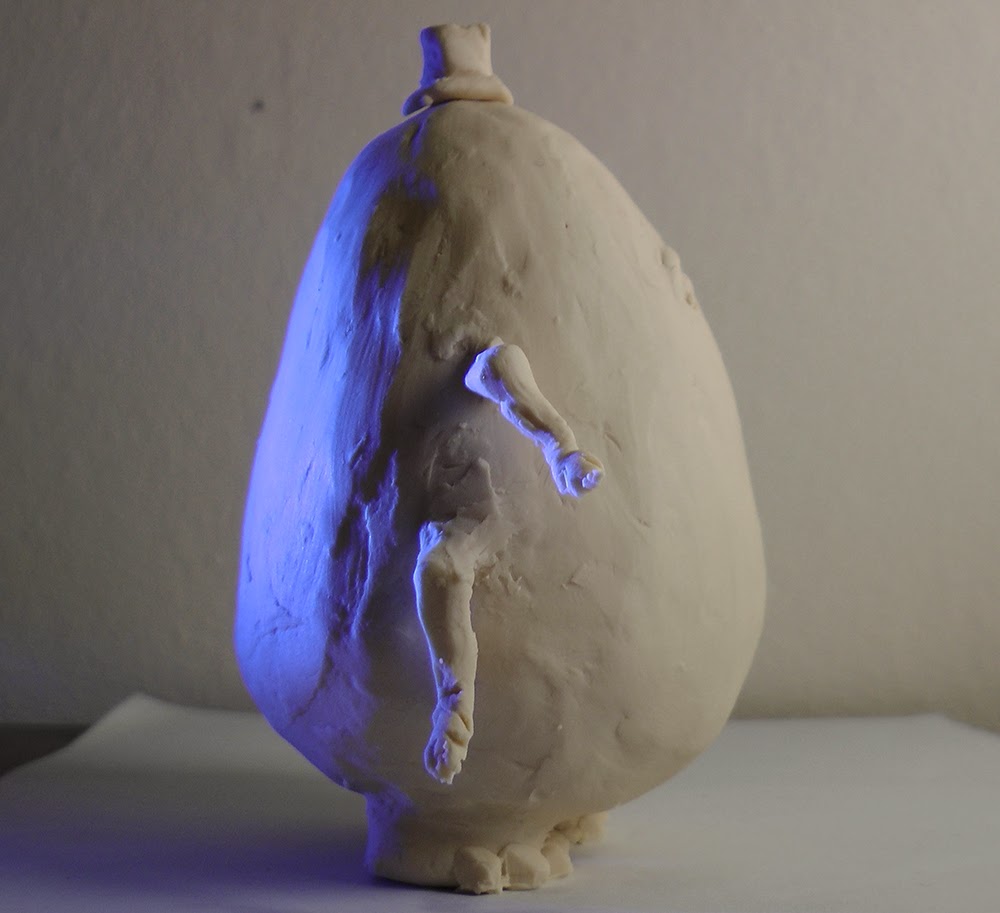


The form may look a bit unrealistically simple, but since his colour is so dark, what we'll be seeing in the final film will be basically a silhouette with eyes, it's going to look fine.


Subscribe to:
Posts (Atom)